
Yes, you can send an invoice on WhatsApp. Lots of clients actually prefer it to email. The app isn’t what makes it look unprofessional. It’s how the invoice turns up: a fuzzy screenshot, a "hey so it’s 400" text, or a voice note reading out your bank details.
What works is simple. A proper invoice, plus a short message saying what it is, how much, and when it’s due. Here’s how to do that in a couple of taps with Wizard Invoice, and after that, a few habits that help.
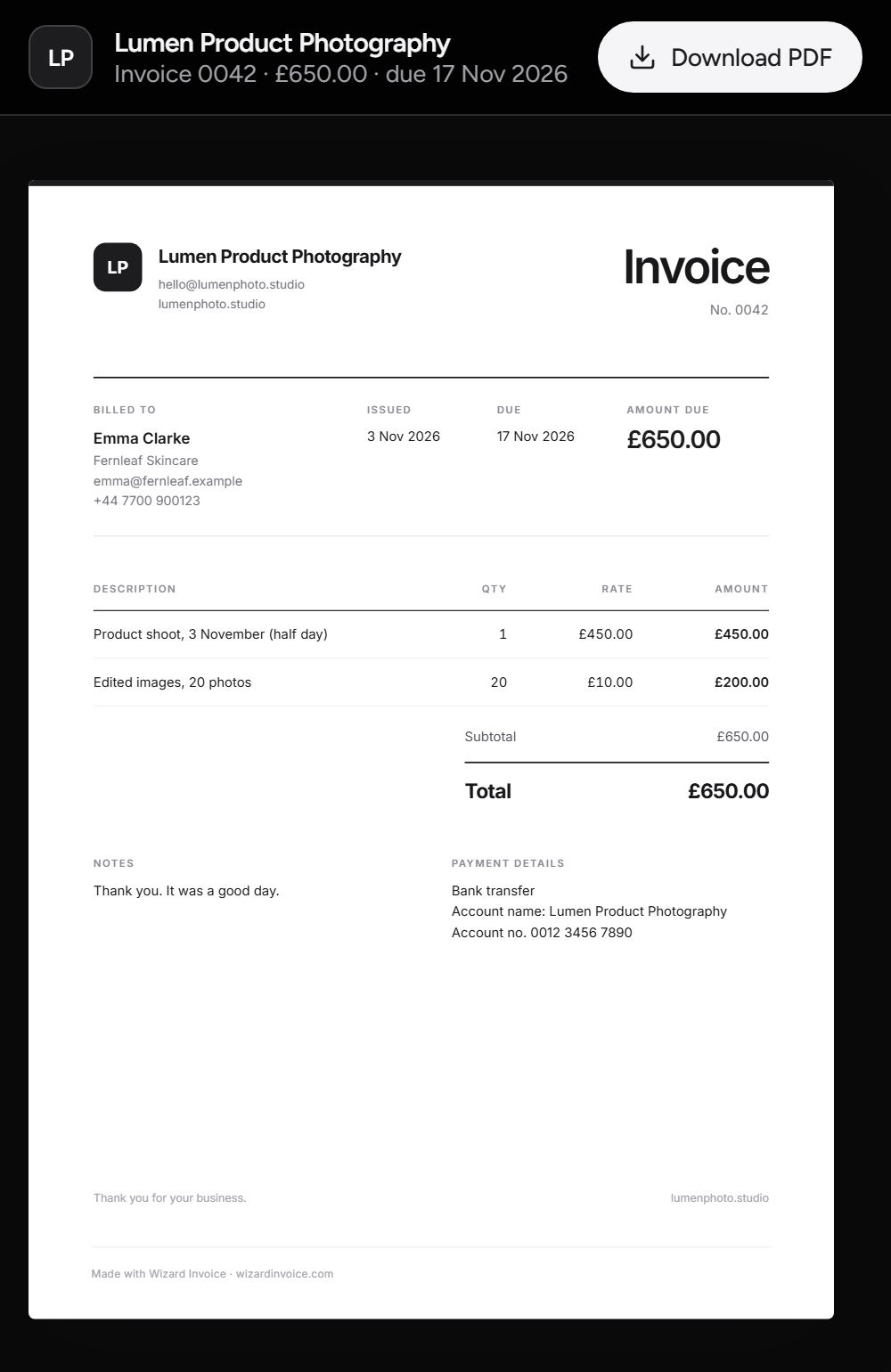
For the example: you’re a photographer, you shot a product range for Emma at Fernleaf Skincare last week, and you’re billing £650.
Step 1: Make the invoice and add your client’s WhatsApp number
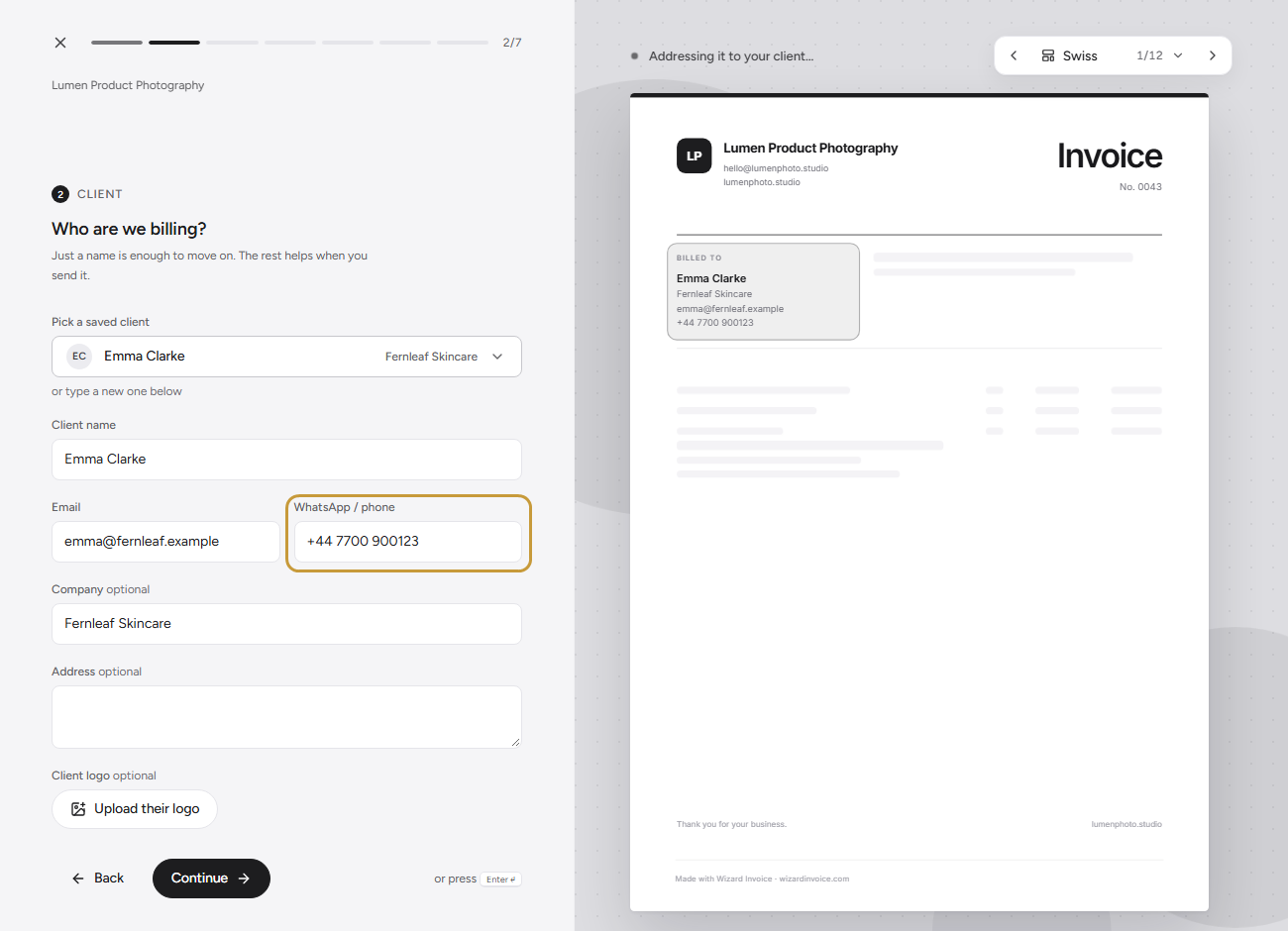
Start a new invoice. The app asks one question at a time, so you just answer as you go. When you get to the client, put their number in the WhatsApp / phone field with the country code in front (+44 for the UK, say). WhatsApp needs the full international number, or it can’t find the right chat.
Step 2: On the last step, tap WhatsApp
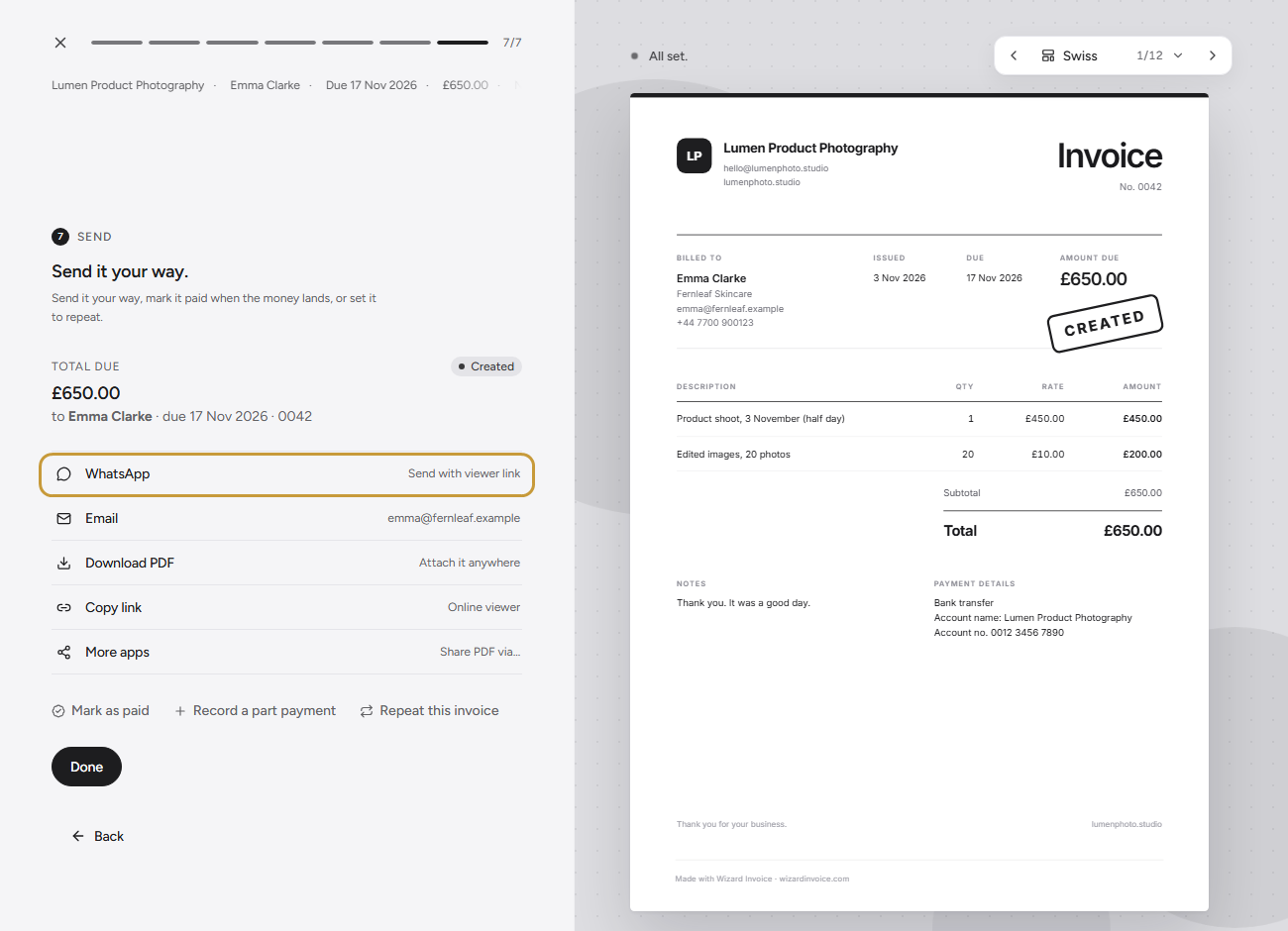
Once the invoice looks right, create it. You’ll land on a list of ways to send it. Tap WhatsApp. The app marks the invoice as sent at the same time, so there’s nothing to remember to update later.
Step 3: Check the message and press send
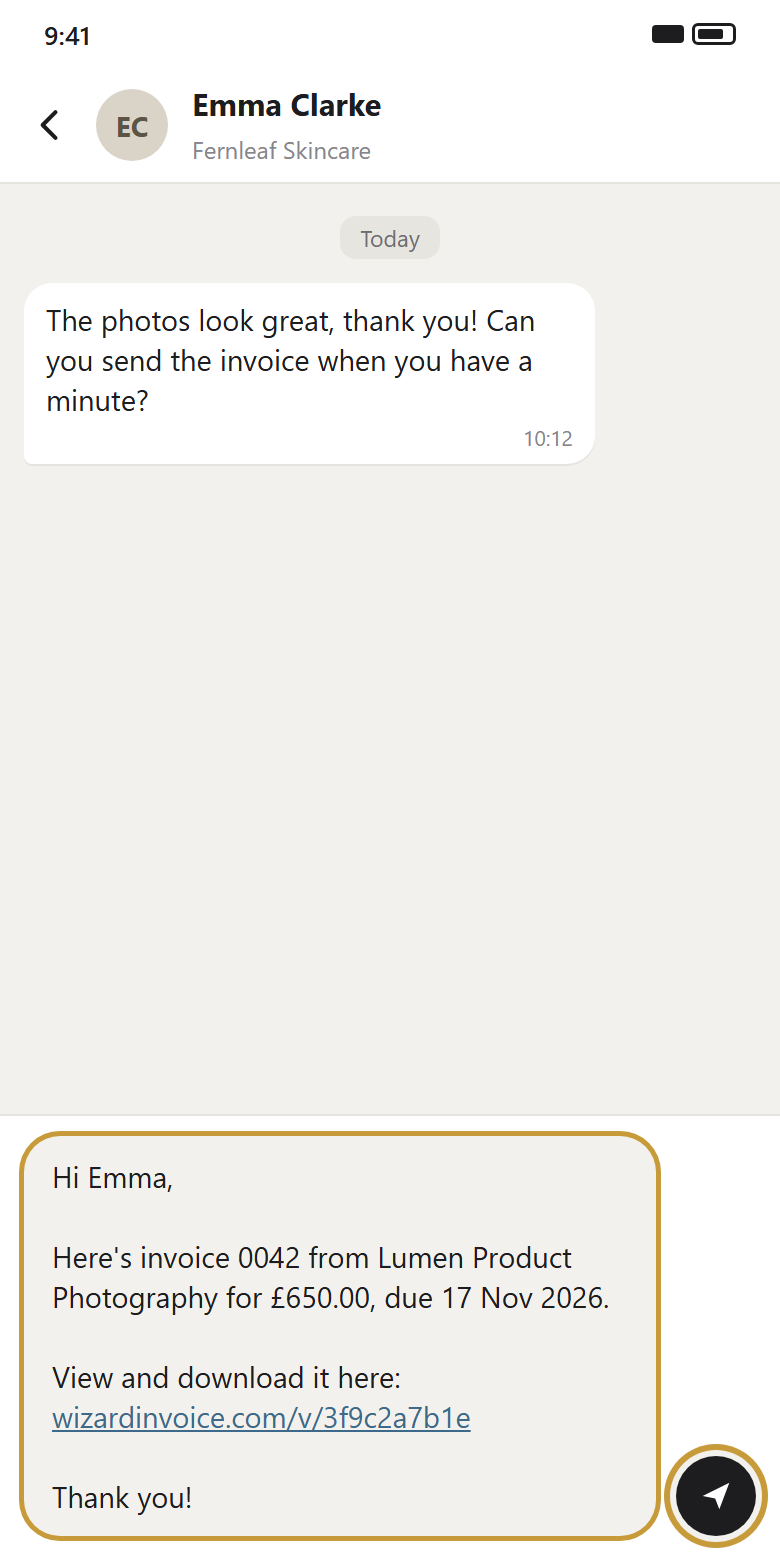
WhatsApp opens straight to your chat with Emma, and the message is already there. It says who it’s from, the invoice number, the amount and the due date, with a link to the invoice underneath. Give it a quick read. If you want, add something of your own, like "Thanks again, it was a good day." Then send it.
You don’t need to apologise for sending it, or explain it. Getting paid is a normal part of the job, and a short, clear message says exactly that.
Step 4: Your client opens the invoice
Emma taps the link and the invoice opens on her phone, with a button to download the PDF. No account, nothing to install. If someone in her accounts team needs the file, she downloads it and forwards it on.
Prefer to send the PDF itself?
Some clients would rather have the actual file in the chat. That’s easy too. Tap Download PDF on the same step. Then in WhatsApp, tap the attach button, choose Document (not Gallery or Photos), and pick the file. WhatsApp’s help centre says documents can be up to 2 GB, so size won’t be a problem. On WhatsApp Web or the desktop app, you can just drag the PDF into the chat.
Or send both. Some people tap links, some people open files.
Check that WhatsApp is the right place
If your client is a sole trader or a small business and you already chat on WhatsApp, sending the invoice there makes sense. With a bigger company, check first.
Larger companies usually have someone in accounts who actually pays the invoices, and they’re probably not in your chat with the project manager. So ask once, early on: "Where should I send invoices?" If there’s an accounts email, send it there, then drop a quick WhatsApp to say it’s on its way. Your contact knows it’s coming, and the person who pays actually gets it.
Make your number look like a business
If you send a lot of invoices on WhatsApp, have a look at the WhatsApp Business app. You get a business profile with your name on it, and quick replies, which are saved messages you bring up by typing "/" in a chat. You can keep up to 50.
For invoicing you really only need two. One for sending an invoice by hand, with gaps for the number, amount and due date. One for a friendly reminder. You’ll still tweak them each time, but you’re not starting from an empty message box.
Some people keep a separate number for work, too. Up to you, but it does stop client messages getting lost between the family group chats.
Keep your payment details steady
Put your bank or payment details on the invoice, not in a fresh chat message each time. It looks tidier and it’s safer. Scammers do send fake "our bank details have changed" messages, and a careful client will be wary of payment details that suddenly show up somewhere new.
So keep them on the invoice and keep them the same. If they ever do change, tell the client on a call as well as in writing.
Follow up in the same chat
If the due date goes by, reply in the same chat, right under the invoice. Your client can scroll up and see exactly what you mean. Keep it short and friendly, and assume they just missed it.
And stick to working hours. A payment reminder at 11pm feels pushy, even if you didn’t mean it to.
Don’t let the chat be your only record
Chats get deleted. Phones get lost or replaced. And nobody wants to scroll back six months looking for one invoice. Keep your own copy of everything you send, numbered in order, so you can see who’s paid and who hasn’t without opening WhatsApp.
Wizard Invoice keeps that list for you: every invoice numbered, with who has paid and who hasn’t. The free plan covers 5 invoices a month. If you only need a one-off PDF, the free invoice maker builds one in your browser with no account.
Comments
No comments yet. Be the first to add one.